
From Clomosy Docs
ClomosyAdmin (talk | contribs) No edit summary |
|||
| Line 1: | Line 1: | ||
=== | <div class="row d-flex align-items-stretch""> | ||
<div class="col-lg-3"> | |||
<div class=" | <div class=" card d-card p-4 h-100"> | ||
<div class="d-flex justify-content-center "> | |||
[[File:windows.png|50px|link=https://clomosy.com/win/ClomosyLearn.rar|]] | |||
</div> | |||
<div class="text-center pt-3"> | |||
Download Clomosy Learn.exe | |||
</div> | |||
</div> | |||
</div> | |||
<div class="col-lg-3"> | |||
<div class=" card d-card p-4 h-100"> | |||
<div class="d-flex justify-content-center"> | |||
[[File:app-store.png|50px|link=https://apps.apple.com/tr/app/clomosy-learn/id6459060147|]] | |||
</div> | |||
<div class="text-center pt-3"> | |||
Download Clomosy Learn - App Store | |||
</div> | |||
</div> | |||
</div> | |||
<div class="col-lg-3"> | |||
<div class="card d-card p-4 h-100"> | |||
<div class="d-flex justify-content-center"> | |||
[[File:google-play.png|50px|link=https://play.google.com/store/apps/details?id=com.clomosy.learn&hl=tr&gl=US|]] | |||
</div> | |||
<div class="text-center pt-3"> | |||
Download Clomosy Learn - Play Store | |||
</div> | |||
</div> | |||
</div> | |||
<div class="col-lg-3"> | |||
<div class="card d-card p-4 h-100"> | |||
<div class="d-flex justify-content-center"> | |||
[[File:Clomosybook.png|40px|link=https://clomosy.com/docs/ClomosyKitapV1.pdf|]] | |||
</div> | |||
<div class="text-center pt-3"> | |||
Clomosy Book | |||
</div> | |||
</div> | </div> | ||
</div> | </div> | ||
</div> | </div> | ||
[[File:ClomosyLearnGooglePlay.png|frameless|850px]] | [[File:ClomosyLearnGooglePlay.png|frameless|850px]] | ||
[[File:ClomosyLearnAppStore.png|frameless|750px]] | [[File:ClomosyLearnAppStore.png|frameless|750px]] | ||
[[File:AppStoreLEARN.png|frameless|750px]] | [[File:AppStoreLEARN.png|frameless|750px]] | ||
<gallery widths="350px" heights="500px" align="center" mode="nolines"> | <gallery widths="350px" heights="500px" align="center" mode="nolines"> | ||
| Line 75: | Line 58: | ||
File: MobileConfirmationCodeV1.1.jpg | ''Mobil Confirmation Code Screen'' | File: MobileConfirmationCodeV1.1.jpg | ''Mobil Confirmation Code Screen'' | ||
</gallery> | </gallery> | ||
[[File:UserGUID.jpg|frameless|250px]]<br> | [[File:UserGUID.jpg|frameless|250px]]<br> | ||
Revision as of 07:26, 25 September 2024

Download Clomosy Learn.exe

Download Clomosy Learn - App Store

Download Clomosy Learn - Play Store

Clomosy Book
File:ClomosyLearnGooglePlay.png
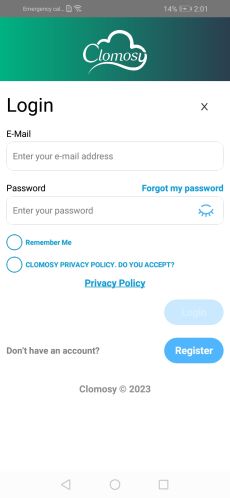
Mobile Login Screen
- MobileRegisterV1.1.jpg
Mobil Register Screen
- MobileConfirmationCodeV1.1.jpg
Mobil Confirmation Code Screen


