
From Clomosy Docs
No edit summary |
No edit summary |
||
| Line 9: | Line 9: | ||
<span style="color:blue"> xCaption</span> : You can add a title. | <span style="color:blue"> xCaption</span> : You can add a title. | ||
{| class="wikitable" style="border: 2px solid #c3d7e0" | |||
! style="background-color: #c3d7e0"| Feature !!style="background-color: #c3d7e0"| Use of !!style="background-color: #c3d7e0"|Definition | |||
|- | |||
|TclQRCodeGenerator || QRGen : TclQRCodeGenerator; || A variable belonging to the TclQRCodeGenerator class is created. | |||
|- | |||
|AddNewQRCodeGenerator || QRGen = MyForm.AddNewQRCodeGenerator(MyForm,'QRGen','Test QRGen Caption'); || A new TclQRCodeGenerator is added to the form. | |||
|- | |||
|Width || QRGen.Width = 150; ||Allows adjusting the width of the QRCodeGenerator. | |||
|- | |||
|Height || QRGen.Height = 50; ||Allows adjusting the height of the QRCodeGenerator. | |||
|- | |||
|Align || QRGen.Align = alTop; ||With the Align parameter, you can specify where you want our component to be aligned in the form. This parameter has multiple positioning properties. See the [[Object_Properties#Align | page]] to learn about these features. | |||
|- | |||
|Margins || QRGen.Margins.Left = 50; // Right, Top, Bottom ||With the Margins parameter, you can give margins at any scale from the right, left, bottom, top.<br>[[File:QRCodeGeneratorMargins.jpg|frameless|200px]]<br> | |||
|- | |||
|Text || QRGen.Text = FormatDateTime('ddmmyy hhnnss', Now); || Another use of QRCodeGenerator is to add text. If we add text to our component by saying QRGen.text, when the project is run, the title does not appear and the value you have written in the text starts to appear. | |||
|- | |||
|Caption ||QRGen.Caption = 'QRGen's Text'; || It represents the text displayed on the component. The Caption specifies the textual label that the component presents to the user. | |||
|} | |||
'''Example:'''<br> | |||
:'''TRObject Syntax''' | |||
<pre> | |||
var | |||
MyForm:TclForm; | |||
QRGen : TClQRCodeGenerator; | |||
LytNewQrCode :TclLayout; | |||
BtnNewQrCode:TclProButton; | |||
void BtnNewQrCodeClick; | |||
{ | |||
QRGen.Text = FormatDateTime('ddmmyy hhnnss', Now); //dd=day,mm=moon,yy=year -- hh=hour,nn=minute, ss= second | |||
BtnNewQrCode.Caption = QRGen.Text; | |||
} | |||
{ | |||
MyForm = TclForm.Create(Self); | |||
LytNewQrCode = MyForm.AddNewLayout(MyForm,'LytNewQrCode'); | |||
LytNewQrCode.Align=ALTop; | |||
LytNewQrCode.Height = 200; | |||
LytNewQrCode.Margins.Top = 30; | |||
QRGen= MyForm.AddNewQRCodeGenerator(LytNewQrCode,'QRGen','QRCode'); | |||
QRGen.Height = 200; | |||
QRGen.Width = 200; | |||
QRGen.Align = alCenter; | |||
MyForm.AddNewEvent(QRGen,tbeOnGetQRCode,''); | |||
BtnNewQrCode = MyForm.AddNewProButton(MyForm,'BtnNewQrCode','RENEW'); | |||
BtnNewQrCode.Align = alCenter; | |||
BtnNewQrCode.Width = 200; | |||
BtnNewQrCode.Height = 50; | |||
BtnNewQrCode.clProSettings.BorderColor = clAlphaColor.clHexToColor('#003399'); | |||
BtnNewQrCode.clProSettings.FontColor = clAlphaColor.clHexToColor('#4682B4'); | |||
BtnNewQrCode.clProSettings.RoundHeight = 10; | |||
BtnNewQrCode.clProSettings.RoundWidth = 10; | |||
BtnNewQrCode.clProSettings.BorderWidth = 2; | |||
BtnNewQrCode.clProSettings.FontSize = 20; | |||
BtnNewQrCode.clProSettings.IsFill = True; | |||
BtnNewQrCode.clProSettings.IsRound = True; | |||
BtnNewQrCode.SetclProSettings(BtnNewQrCode.clProSettings); | |||
MyForm.AddNewEvent(BtnNewQrCode,tbeOnClick,'BtnNewQrCodeClick'); | |||
MyForm.Run; | |||
} | |||
</pre> | |||
:'''Base Syntax''' | |||
<pre> | |||
var | |||
MyForm:TclForm; | |||
QRGen : TClQRCodeGenerator; | |||
LytNewQrCode :TclLayout; | |||
BtnNewQrCode:TclProButton; | |||
Procedure BtnNewQrCodeClick; | |||
begin | |||
QRGen.Text := FormatDateTime('ddmmyy hhnnss', Now); //dd=day,mm=moon,yy=year -- hh=hour,nn=minute, ss= second | |||
BtnNewQrCode.Caption := QRGen.Text; | |||
End; | |||
begin | |||
MyForm := TclForm.Create(Self); | |||
MyForm := TclForm.Create(Self); | |||
LytNewQrCode := MyForm.AddNewLayout(MyForm,'LytNewQrCode'); | LytNewQrCode := MyForm.AddNewLayout(MyForm,'LytNewQrCode'); | ||
LytNewQrCode.Align:=ALTop; | LytNewQrCode.Align:=ALTop; | ||
LytNewQrCode.Height := 200; | LytNewQrCode.Height := 200; | ||
LytNewQrCode.Margins.Top := 30; | LytNewQrCode.Margins.Top := 30; | ||
QRGen:= MyForm.AddNewQRCodeGenerator(LytNewQrCode,'QRGen','QRCode'); | QRGen:= MyForm.AddNewQRCodeGenerator(LytNewQrCode,'QRGen','QRCode'); | ||
QRGen.Height := 200; | QRGen.Height := 200; | ||
QRGen.Width := 200; | QRGen.Width := 200; | ||
QRGen.Align := alCenter; | QRGen.Align := alCenter; | ||
MyForm.AddNewEvent(QRGen,tbeOnGetQRCode, | MyForm.AddNewEvent(QRGen,tbeOnGetQRCode,''); | ||
BtnNewQrCode:= MyForm.AddNewProButton(MyForm,'BtnNewQrCode', | |||
BtnNewQrCode := MyForm.AddNewProButton(MyForm,'BtnNewQrCode','RENEW'); | |||
BtnNewQrCode.Align := alCenter; | |||
BtnNewQrCode.Width := 200; | |||
BtnNewQrCode.Height := 50; | |||
BtnNewQrCode.clProSettings.BorderColor := clAlphaColor.clHexToColor('#003399'); | |||
BtnNewQrCode.clProSettings.FontColor := clAlphaColor.clHexToColor('#4682B4'); | |||
BtnNewQrCode.clProSettings.RoundHeight := 10; | |||
BtnNewQrCode.clProSettings.RoundWidth := 10; | |||
BtnNewQrCode.clProSettings.BorderWidth := 2; | |||
BtnNewQrCode.clProSettings.FontSize := 20; | |||
BtnNewQrCode.clProSettings.IsFill := True; | |||
BtnNewQrCode.clProSettings.IsRound := True; | |||
BtnNewQrCode.SetclProSettings(BtnNewQrCode.clProSettings); | |||
MyForm.AddNewEvent(BtnNewQrCode,tbeOnClick,'BtnNewQrCodeClick'); | |||
MyForm.Run; | |||
end; | |||
</pre> | |||
Revision as of 15:27, 22 August 2024
QR codes are actually barcodes using cryptology. So there is no visible information. Only when the QR code is deciphered, information is available at the address you go to.
AddNewQRCodeGenerator(TComponent, xName, xCaption): TclQRCodeGenerator
TComponent : The variable name of the defined component is written. Here you should write the component variable name of whatever your component will be in.
xName : The name of the defined QrCodeGenerator should be written.
xCaption : You can add a title.
| Feature | Use of | Definition |
|---|---|---|
| TclQRCodeGenerator | QRGen : TclQRCodeGenerator; | A variable belonging to the TclQRCodeGenerator class is created. |
| AddNewQRCodeGenerator | QRGen = MyForm.AddNewQRCodeGenerator(MyForm,'QRGen','Test QRGen Caption'); | A new TclQRCodeGenerator is added to the form. |
| Width | QRGen.Width = 150; | Allows adjusting the width of the QRCodeGenerator. |
| Height | QRGen.Height = 50; | Allows adjusting the height of the QRCodeGenerator. |
| Align | QRGen.Align = alTop; | With the Align parameter, you can specify where you want our component to be aligned in the form. This parameter has multiple positioning properties. See the page to learn about these features. |
| Margins | QRGen.Margins.Left = 50; // Right, Top, Bottom | With the Margins parameter, you can give margins at any scale from the right, left, bottom, top. |
| Text | QRGen.Text = FormatDateTime('ddmmyy hhnnss', Now); | Another use of QRCodeGenerator is to add text. If we add text to our component by saying QRGen.text, when the project is run, the title does not appear and the value you have written in the text starts to appear. |
| Caption | QRGen.Caption = 'QRGen's Text'; | It represents the text displayed on the component. The Caption specifies the textual label that the component presents to the user. |
Example:
- TRObject Syntax
var
  MyForm:TclForm;
  QRGen :  TClQRCodeGenerator;
  LytNewQrCode :TclLayout;
  BtnNewQrCode:TclProButton;

void BtnNewQrCodeClick;
{
  QRGen.Text = FormatDateTime('ddmmyy hhnnss', Now); //dd=day,mm=moon,yy=year -- hh=hour,nn=minute, ss= second
  BtnNewQrCode.Caption = QRGen.Text;
}

{
  MyForm = TclForm.Create(Self);

  LytNewQrCode = MyForm.AddNewLayout(MyForm,'LytNewQrCode');
  LytNewQrCode.Align=ALTop;
  LytNewQrCode.Height = 200;
  LytNewQrCode.Margins.Top = 30;

  QRGen= MyForm.AddNewQRCodeGenerator(LytNewQrCode,'QRGen','QRCode');
  QRGen.Height = 200;
  QRGen.Width = 200;
  QRGen.Align = alCenter;
  MyForm.AddNewEvent(QRGen,tbeOnGetQRCode,'');

  BtnNewQrCode = MyForm.AddNewProButton(MyForm,'BtnNewQrCode','RENEW');
  BtnNewQrCode.Align = alCenter;
  BtnNewQrCode.Width = 200;
  BtnNewQrCode.Height = 50;
  BtnNewQrCode.clProSettings.BorderColor = clAlphaColor.clHexToColor('#003399');
  BtnNewQrCode.clProSettings.FontColor = clAlphaColor.clHexToColor('#4682B4');
  BtnNewQrCode.clProSettings.RoundHeight = 10;
  BtnNewQrCode.clProSettings.RoundWidth = 10;
  BtnNewQrCode.clProSettings.BorderWidth = 2;
  BtnNewQrCode.clProSettings.FontSize = 20;
  BtnNewQrCode.clProSettings.IsFill = True;
  BtnNewQrCode.clProSettings.IsRound = True;
  BtnNewQrCode.SetclProSettings(BtnNewQrCode.clProSettings);

  MyForm.AddNewEvent(BtnNewQrCode,tbeOnClick,'BtnNewQrCodeClick');

  MyForm.Run;

}
- Base Syntax
var
  MyForm:TclForm;
  QRGen :  TClQRCodeGenerator;
  LytNewQrCode :TclLayout;
  BtnNewQrCode:TclProButton;

Procedure BtnNewQrCodeClick;
begin
  QRGen.Text := FormatDateTime('ddmmyy hhnnss', Now); //dd=day,mm=moon,yy=year -- hh=hour,nn=minute, ss= second
  BtnNewQrCode.Caption := QRGen.Text;
End;

begin
  MyForm := TclForm.Create(Self);

  LytNewQrCode := MyForm.AddNewLayout(MyForm,'LytNewQrCode');
  LytNewQrCode.Align:=ALTop;
  LytNewQrCode.Height := 200;
  LytNewQrCode.Margins.Top := 30;

  QRGen:= MyForm.AddNewQRCodeGenerator(LytNewQrCode,'QRGen','QRCode');
  QRGen.Height := 200;
  QRGen.Width := 200;
  QRGen.Align := alCenter;
  MyForm.AddNewEvent(QRGen,tbeOnGetQRCode,'');

  BtnNewQrCode := MyForm.AddNewProButton(MyForm,'BtnNewQrCode','RENEW');
  BtnNewQrCode.Align := alCenter;
  BtnNewQrCode.Width := 200;
  BtnNewQrCode.Height := 50;
  BtnNewQrCode.clProSettings.BorderColor := clAlphaColor.clHexToColor('#003399');
  BtnNewQrCode.clProSettings.FontColor := clAlphaColor.clHexToColor('#4682B4');
  BtnNewQrCode.clProSettings.RoundHeight := 10;
  BtnNewQrCode.clProSettings.RoundWidth := 10;
  BtnNewQrCode.clProSettings.BorderWidth := 2;
  BtnNewQrCode.clProSettings.FontSize := 20;
  BtnNewQrCode.clProSettings.IsFill := True;
  BtnNewQrCode.clProSettings.IsRound := True;
  BtnNewQrCode.SetclProSettings(BtnNewQrCode.clProSettings);

  MyForm.AddNewEvent(BtnNewQrCode,tbeOnClick,'BtnNewQrCodeClick');

  MyForm.Run;

end;
Output:
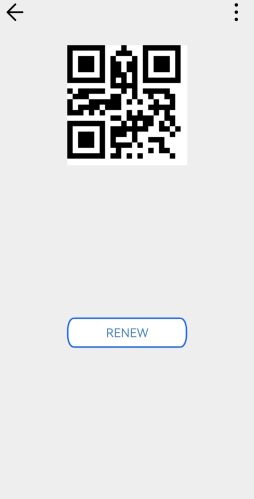
When the Project Opens
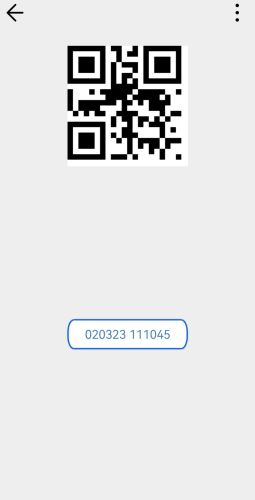
When the Button is Clicked

