
From Clomosy Docs
No edit summary |
No edit summary |
||
| Line 1: | Line 1: | ||
! To start using the Clomosy application, you can install | ! To start using the Clomosy application, you can install and create your projects by following the steps below. | ||
We need to download the application from the application markets.<br> | We need to download the application from the application markets.<br> | ||
<span style="color:red">'''Google Play Store:'''</span> [https://play.google.com/store/search?q=Clomosy%20Crm&c=apps&hl=tr&gl=US Clomosy CRM] | <span style="color:red">'''Google Play Store:'''</span> [https://play.google.com/store/search?q=Clomosy%20Crm&c=apps&hl=tr&gl=US Clomosy CRM] | ||
| Line 5: | Line 5: | ||
<span style="color:red">'''App Store:'''</span> [https://apps.apple.com/tr/app/clomosy-crm/id6444050055?l=tr Clomosy CRM] | <span style="color:red">'''App Store:'''</span> [https://apps.apple.com/tr/app/clomosy-crm/id6444050055?l=tr Clomosy CRM] | ||
[[File:ClomosyAppStore.png|650px|center|thumb]] | [[File:ClomosyAppStore.png|650px|center|thumb]] | ||
After downloading the application, the Login screen below appears. Click on the Register button here.<br> | |||
Fill in the relevant fields on the Register screen below and click the register button to create a user account. | |||
<gallery widths="300px" heights="500px" align="center"> | |||
File: MobileLogin.jpg | '' Mobile Login Screen'' | |||
File: MobileRegister.jpg | ''Mobil Register Screen'' | |||
</gallery> | |||
Revision as of 07:18, 30 December 2022
! To start using the Clomosy application, you can install and create your projects by following the steps below.
We need to download the application from the application markets.
Google Play Store: Clomosy CRM
App Store: Clomosy CRM
After downloading the application, the Login screen below appears. Click on the Register button here.
Fill in the relevant fields on the Register screen below and click the register button to create a user account.
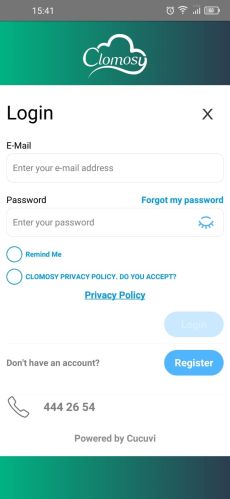
Mobile Login Screen
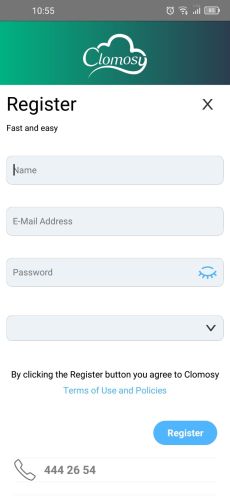
Mobil Register Screen


