|
|
| Line 21: |
Line 21: |
|
| |
|
| [[File:Management.png|frameless|400px]]<br><br> | | [[File:Management.png|frameless|400px]]<br><br> |
|
| |
|
| |
|
| |
| = Saving the Project =
| |
| Thanks to the IDE used in Clomosy, there is no such thing as saving a file and throwing the files into special folders. It is enough to register on our website and to develop and save your codes here, click either the Ctrl + S key or the save button in the upper right corner. In this way, your data is stored in the cloud and continued to be used from there.<br>
| |
|
| |
| Now we have learned how to register. So what do we record, what do we want to see on our screen? How will we create the designs?<br>
| |
|
| |
| For this, let's take a look at our components now.<br>
| |
|
| |
| = Form =
| |
| When you create a new application, the Main Code section will appear on your screen and it will be empty. Here is the Form that we need to define first.<br>
| |
| If you need to use several forms in an application, you can add more forms to your project. You can see how to do this on [[Procedure Operations|the page.]]<br>
| |
| While working at Clomosy, imagine you are an artist and form is your canvas. By placing components on the form, you "paint" the graphical user interface of the application. Then you change their appearance by changing the properties of the components. You can learn how to create a form by looking at its [https://www.docs.clomosy.com/index.php/Clomosy_Custom_Form#Form_Creating page] .
| |
|
| |
| = Clomosy Basis Form Components =
| |
| We can split a Clomosy project into two. The moment of work and the moment of design. The run time is the moment when the project runs after the compilation process is done. The design moment is when we are creating and designing the project at Clomosy.
| |
|
| |
| There are definitions where we can change the most used components and features during the design phase.
| |
|
| |
| For Component, we can briefly call it objects that understand Clomosy. These objects are special objects that know which palette they will appear in Clomosy, whether they are currently at design or working time, added to or deleted from the form.<br>
| |
|
| |
| You can check [[Clomosy_Custom_Form#Clomosy.Basis.Form_Components | the page]] to learn about the components and how to use them.
| |
Revision as of 06:24, 30 September 2024
Haven't you created a project yet?
Go to the project creation page.
To reach the Clomosy IDE screen, you can reach the project creation stage by looking at website. The integrated development environment Clomosy is a single-window system configured by the setting elements of the user interface. The image below shows that you are in the IDE screen. You can write your codes on the black screen and activate the project by clicking the save button at the top right.
In the main Clomosy window, there is the project activation code, the project members list and the administration panel.
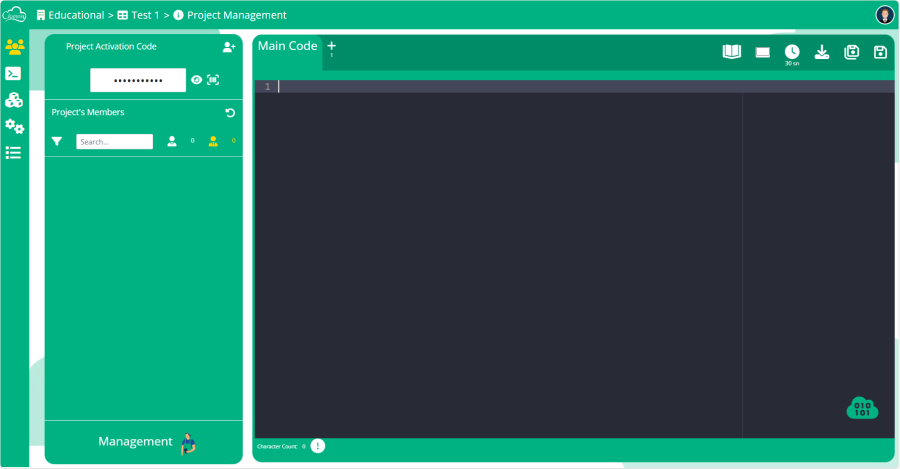
There is the code that will be given to the members you want to access your projects with the project activation code. With this code, members can access the project via windows application or mobile application, regardless of where they are.
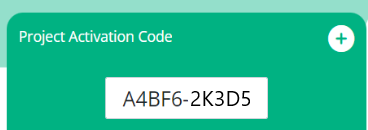
After sending the project code to users, users receive the code and add it to their mobile app. After this addition is made, the person's name appears in the list of project members below (if the name did not come, click the refresh button at the top right) and once accepted, access is granted.

When users enter the administration panel, they encounter templates here. Among these templates, people with a student membership can access the Codes and Params sections and use them as they wish. Check out [1] for more detailed information.