|
|
| Line 22: |
Line 22: |
| [[File:Management.png|frameless|400px]]<br><br> | | [[File:Management.png|frameless|400px]]<br><br> |
|
| |
|
| = Clomosy IDE ShortCuts =
| |
| You can provide faster and easier use by using the keyboard shortcuts defined on the IDE. Our shortcuts;<br>
| |
| *<span style="color:red">Ctrl + F1 :</span> It serves to shorten the code structure defined in parentheses. (Where the cursor is is important. The parenthesis should stop right after the opening part.)<br>
| |
|
| |
|
| [[File:CtrlF1Use.png|frameless|300px]]<br><br>
| |
|
| |
| *<span style="color:red">Ctrl + F :</span> (Search/Find) Opens the search bar. If you select a word and press Ctrl + F, it searches for the word you selected.<br>
| |
|
| |
| [[File:CtrlFUse.png|frameless|400px]]<br><br>
| |
|
| |
| If you click the “+” button under the search bar, it has the feature of changing the word you are looking for.
| |
| Example; The variable “number” is an existing variable name. You can change this variable to "numberText". If you click the Replace button next to it, it only changes the "number" variable you selected. If you click the All button, all the "number" variables are changed. (Note that it also changes all variable names with number at the beginning or middle.)<br>
| |
|
| |
| [[File:CtrlFExampleUse.png|frameless|400px]]<br><br>
| |
|
| |
| Let's see what the buttons at the bottom right of the image above do:
| |
| :<span style="color:blue">.* (RegExp Search) :</span>Regex; It is a search structure used to detect repetitive or unique structures in texts, which has the regular expression expansion and means regular expression in our language. Regular expressions allow you to get fast results on large datasets.
| |
| :<span style="color:blue">Aa (CaseSensitive) :</span> When searching, case sensitivity treats upper and lower case letters differently and searches as such. For example, we searched for name and if the variable name is Name, it will not see this variable name.
| |
| :<span style="color:blue">\b ( Whole Search) :</span> It just takes the typed variable. For example, there are 2 separate variables "number" and "numberValue" and you just want to change the variable "number" to "number1" in all the used places. If you don't click the /b button, it changes the variable name to "number1Value" because "numberValue" is preceded by "number". /b just changes the variable "number" when you click it.
| |
| :<span style="color:blue">S (Search In Selection) :</span> It only deletes the selected one. In other words, when you activate this button, even if you click the "All" button, it will still change the selected one.
| |
|
| |
| *<span style="color:red">Ctrl + Z :</span> It is the Undo button.
| |
|
| |
| *<span style="color:red">Ctrl + <spacebar> :</span> The code completion popup.
| |
| [[File:CtrlSpacebarUse.png|frameless|250px]]<br><br>
| |
|
| |
| *<span style="color:red">Ctrl + Shift + U :</span> Converts all values in the selected field to lowercase.
| |
|
| |
| *<span style="color:red">End key :</span> Goes to the end of the row.
| |
|
| |
| *<span style="color:red">Home key :</span> Goes to the start of the row.
| |
|
| |
| *<span style="color:red">Enter key :</span> Adds a carriage return.
| |
|
| |
| *<span style="color:red">Insert key :</span> It returns the insert and the mod is on/off.
| |
|
| |
| *<span style="color:red">Delete key :</span> Deletes the character to the right of the cursor.
| |
|
| |
| *<span style="color:red">Tab key :</span> Adds a tab.
| |
|
| |
| *<span style="color:red">Ctrl + Right Arrow key :</span> Starting from the area where the cursor is located, it jumps to the right word by word.
| |
|
| |
| *<span style="color:red">Ctrl + Back key :</span> It deletes all blank lines from the current position to the upper position.
| |
|
| |
| *<span style="color:red">Ctrl + Home key :</span> Goes to the top line of the IDE.
| |
|
| |
| *<span style="color:red">Ctrl + End key :</span> Goes to the bottom line of the IDE.
| |
|
| |
| *<span style="color:red">Ctrl + Delete key :</span> Deletes the selected block.
| |
|
| |
| *<span style="color:red">Ctrl + Up Arrow key :</span> The cursor remains stationary and the screen scrolls upwards.
| |
|
| |
| *<span style="color:red">Ctrl + Down Arrow key :</span> The cursor remains stationary and the screen scrolls downwards.
| |
|
| |
| *<span style="color:red">Shift + Right Arrow key :</span> Moves the cursor to the right and selects areas as you scroll.
| |
|
| |
| *<span style="color:red">Shift + Left Arrow key :</span> Moves the cursor to the left and selects areas as you scroll.
| |
|
| |
| *<span style="color:red">Shift + Up Arrow key :</span> Moves upwards from the area where the cursor is located and the areas it passes through are selected.
| |
|
| |
| *<span style="color:red">Shift + Down Arrow key :</span> Moves down from the area where the cursor is located and selects the areas it passes through.
| |
|
| |
| *<span style="color:red">Shift + End key :</span> Selects from the cursor position to the end of the current line.
| |
|
| |
| *<span style="color:red">Shift + Home key :</span> Selects from the cursor position to the beginning of the current line.
| |
|
| |
| *<span style="color:red">Ctrl +Shift + Left Arrow key :</span> Selects the word to the left of the cursor.
| |
|
| |
| *<span style="color:red">Ctrl +Shift + Right Arrow key :</span> Selects the word to the right of the cursor.
| |
|
| |
| *<span style="color:red">Ctrl + Shift + Home key :</span> Selects from the cursor position to the beginning of the current file.
| |
|
| |
| *<span style="color:red">Ctrl + Shift + End key :</span> Selects from the cursor position to the end of the current file.
| |
|
| |
| *<span style="color:red">Shift + Alt + Up Arrow key :</span> Writes the same line where the cursor is on the line above.
| |
|
| |
| *<span style="color:red">Shift + Alt + Down Arrow key :</span> Writes the line where the cursor is located on the next line.
| |
|
| |
| *<span style="color:red">Click + Alt + mousemove :</span> Selects column-oriented blocks.
| |
|
| |
| *<span style="color:red">Ctrl + K :</span> Goes to all existing lines of the selected word.
| |
|
| |
| *<span style="color:red">Alt Gr + 7 :</span> Selected rows, put it in the comment line.
| |
|
| |
| *<span style="color:red">Ctrl + mouseclick :</span> You can select the fields and change the selected fields at the same time.
| |
|
| |
| *<span style="color:red">Ctrl + S :</span> It is the save process.
| |
|
| |
| *<span style="color:red">Ctrl + + key :</span> Zoom
| |
|
| |
| *<span style="color:red">Ctrl + - key :</span> Zoom out
| |
|
| |
| *<span style="color:red">Alt + F1 :</span> When an object is selected and this shortcut is used, a screen displaying the properties of the selected object appears, allowing access to all of its features.
| |
|
| |
|
| = Saving the Project = | | = Saving the Project = |
Haven't you created a project yet?
Go to the project creation page.
To reach the Clomosy IDE screen, you can reach the project creation stage by looking at website. The integrated development environment Clomosy is a single-window system configured by the setting elements of the user interface. The image below shows that you are in the IDE screen. You can write your codes on the black screen and activate the project by clicking the save button at the top right.
In the main Clomosy window, there is the project activation code, the project members list and the administration panel.
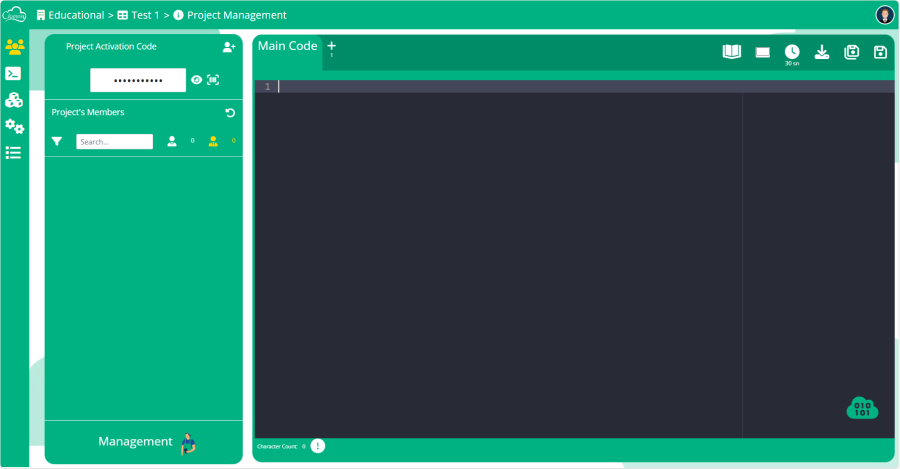
There is the code that will be given to the members you want to access your projects with the project activation code. With this code, members can access the project via windows application or mobile application, regardless of where they are.
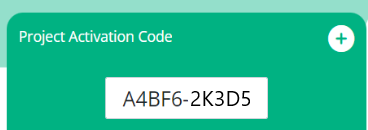
After sending the project code to users, users receive the code and add it to their mobile app. After this addition is made, the person's name appears in the list of project members below (if the name did not come, click the refresh button at the top right) and once accepted, access is granted.

When users enter the administration panel, they encounter templates here. Among these templates, people with a student membership can access the Codes and Params sections and use them as they wish. Check out [1] for more detailed information.

Saving the Project
Thanks to the IDE used in Clomosy, there is no such thing as saving a file and throwing the files into special folders. It is enough to register on our website and to develop and save your codes here, click either the Ctrl + S key or the save button in the upper right corner. In this way, your data is stored in the cloud and continued to be used from there.
Now we have learned how to register. So what do we record, what do we want to see on our screen? How will we create the designs?
For this, let's take a look at our components now.
Form
When you create a new application, the Main Code section will appear on your screen and it will be empty. Here is the Form that we need to define first.
If you need to use several forms in an application, you can add more forms to your project. You can see how to do this on the page.
While working at Clomosy, imagine you are an artist and form is your canvas. By placing components on the form, you "paint" the graphical user interface of the application. Then you change their appearance by changing the properties of the components. You can learn how to create a form by looking at its page .
Clomosy Basis Form Components
We can split a Clomosy project into two. The moment of work and the moment of design. The run time is the moment when the project runs after the compilation process is done. The design moment is when we are creating and designing the project at Clomosy.
There are definitions where we can change the most used components and features during the design phase.
For Component, we can briefly call it objects that understand Clomosy. These objects are special objects that know which palette they will appear in Clomosy, whether they are currently at design or working time, added to or deleted from the form.
You can check the page to learn about the components and how to use them.


